

Wealthfolio 3.13.0 – Release Notes
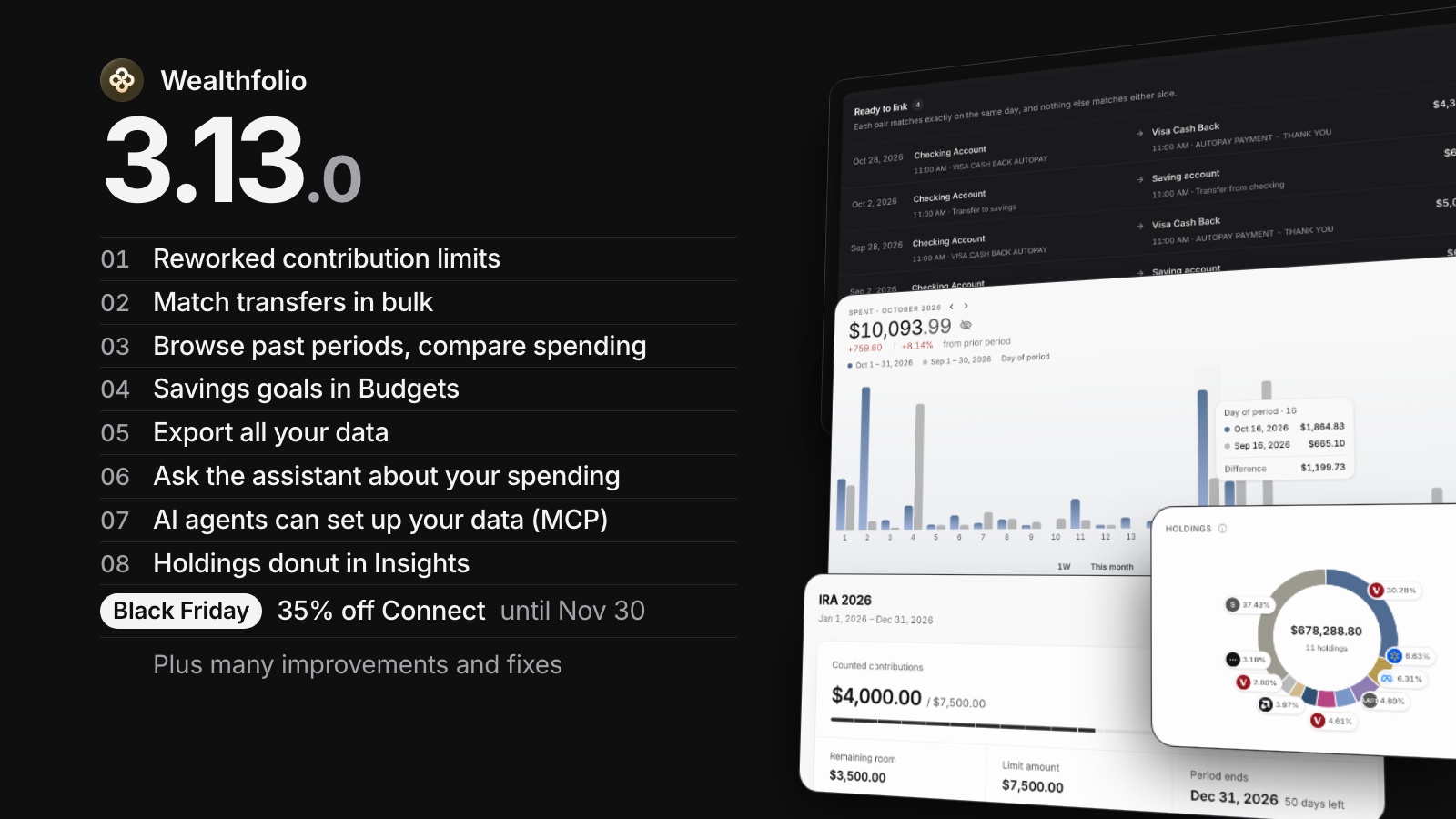
Wealthfolio 3.13 reworks contribution limits: a details page shows what counts toward each limit and lets you leave a contribution out. On the new Match transfers page you can link both sides of many transfers at once. You can step back through past periods and compare spending with the period before, Budgets track savings goals, dividends and interest are entered before tax, and Data export covers everything you enter. The in-app assistant can now answer questions about your spending, and AI agents can set up your accounts and holdings.
First launch: the app recalculates your holdings once. Holdings snapshots you entered yourself don’t change.
Using device sync? Update all your devices to 3.13.
Using the in-app assistant? If a provider’s Data access is still on its default, the assistant can now read your Spending data and send it to that provider. To stop this, turn off Spending in Settings → AI providers → Data access. A selection you saved yourself doesn’t change.
Contribution limits
Click a limit to open its details page: Counted contributions, Remaining room, Limit amount, Period ends, and what each account contributed. Under Contribution activity, switch a contribution off to leave it out of that limit only. It shows Excluded by you, and the activity itself doesn’t change. Transfers that aren’t counted automatically are listed with the reason.
Turn on Repeats every year in the limit dialog to see Projected cards for the coming years, with the same amount and dates moved forward. Nothing is saved until you choose Add this year, which opens the dialog already filled in. Limits for a later year now show under Upcoming years; before, they were saved but never shown.
One dialog edits everything about a limit, its accounts included. Open it from a card’s ⋮ → Edit, or from Edit on the details page. Cards now show the limit’s progress and the accounts that count, and open the details page.
Match transfers
Match transfers lists the transfers whose two sides came in separately, such as a transfer whose sides Connect synced one at a time, so you can link them all at once. Ready to link lists exact pairs, and one button links them all, in batches. Needs a look groups the rest by reason, such as Arrived on a different day, each with Link, Mark as external, Find match or Skip. Open it from the Health Center’s Incomplete transfer detected issue or, on desktop, from Activities → Add Activities → Match transfers.
Make it a transfer…, in the Activities and Spending row menus, turns a cash deposit or withdrawal into a linked transfer between your accounts. Pick the other side in another account within 7 days, or choose Create it in another account. The pair then stops counting as an expense and an income in Spending.
Past periods and comparisons
Previous period and Next period arrows on the dashboard’s Investments, Net Worth and Spending tabs, and in Insights → Spending, step through the period you picked: 3M steps back three months at a time. The calendar picker gets Month and Year tabs to jump to any completed month or calendar year.
Spending gets a 1W range and, in its ⋯ menu, Compare to prior period. The previous period’s bars sit beside the current ones, tooltips show both date ranges and the difference, and either bar opens its transactions.
Last month is gone: press Previous period from This month, or pick the month under Month.
Savings goals in Budgets
Savings categories now appear in Budgets and in the default plan (Settings → Spending tracker → Default monthly budget plan), each with a Savings goal that fills with the money you moved to savings that month. Groups and totals show what you saved, and a savings goal never shows as overspent. Savings categories can move to another group and can roll an unmet goal into the next month.
Dividends and interest before tax
Dividend forms, return of capital included, and interest forms ask for the Amount before tax and the Withholding tax, and work out the Received amount, on desktop and phones. If your statement shows the amount after tax, type it into Received amount and the amount before tax is worked out instead. Credit-card interest, DRIP, dividends in kind and staking rewards keep their fields.
Merge spending categories
Deleting a category you’ve used now merges it into another category of the same kind. Its transactions, split lines, rules and budget amounts move over in one step, after a review that shows each budget as Current + Added = New total. Unused categories delete as before.
Export all your data
Settings → Backup & export → Data export lists 23 datasets in six groups, with the number of rows in each. Export all saves them as one ZIP (a CSV per dataset and a README) or one JSON file. Archived accounts are included unless you turn them off, and you can limit the dates. A profile with only manual assets and liabilities can now export. Forecasts export from their own screens: a loan’s Export schedule and a goal’s Export projection.
On phones
Add expense and Add income start with a large amount, then the account, date, category and event in grouped rows. Pickers for accounts, lists, dates and symbols open inside the sheet, with Back, instead of a second sheet on top. Sheets and dialogs stay above the keyboard, and the field you tapped scrolls back into view. Closing a form with something typed asks before throwing it away, and Add existing holdings gives each holding its own card. On the dashboard, adding things moves into the ⋮ menu, and health issues show as one badge beside the total.
Ask the assistant about your spending
The in-app assistant can now read your Spending reports, budgets, transactions and events, so it can answer “Where am I spending the most?” with amounts. Each result shows as a card that respects hidden balances. Creating or changing spending data stays with MCP agents, which have a review step. A Spending switch in a provider’s Data access turns these tools on or off.
AI agents (MCP)
Over MCP, an agent can preview and then create or update accounts, save holdings snapshots, add alternative assets and liabilities, and import their values. It can read an asset’s market-data setup, its stored prices, the price providers and stored exchange rates, refresh prices, and fix an asset’s currency, symbol, exchange or provider. Health Center issues now name what they affect.
To use the new write tools, edit the agent’s token in Settings → AI agent access, add Accounts — write or Holdings — write, and reconnect the agent.
Other improvements
- Activities: Sell all fills in the account’s whole position on the Sell form. More details lists an activity’s fee and tax lines when an import or add-on supplies them. Change to … turns a cash deposit or withdrawal into a transfer, and back.
- Budgets: delete a built-in group by moving its categories to another group, and clear a group’s saved rollover with Remove rollover setting.
- Performance: once you compare two or more items, a table under the chart lets you pick the main line or hide one. A value that can’t be worked out shows N/A, with the reason.
- Insights and holdings: the Insights overview has a Holdings donut and a privacy toggle, and you can reorder the desktop Holdings table’s columns from the Columns menu.
- Health Center: warns when an asset you value by hand hasn’t been updated in 90 days, and says why a transaction can’t be applied.
- AI assistant: says when a chat is too long for its model, and waits as long as a provider asks before a retry, up to 10 seconds.
- Add-ons can read your allocation targets, if you allow it.
- Net worth: a liability’s detail sheet has View details, which opens the liability’s page.
After updating
- Moved: you pick a limit’s accounts in its Edit dialog; the account grid on each card is gone. Last month is gone: use Previous period or Month.
- Numbers that may change: Income’s Monthly Average now counts the same months in every period, and a linked transfer between two credit cards or loans no longer counts as Saved.
- Dividends and interest you saved keep their amounts. If you typed the amount before tax as the amount, the row now opens with a higher amount before tax than your statement shows, so you can spot it and correct it.
- Crypto exchange rates: a pair such as BTC/USD added before this update needs its symbol changed to
BTC-USD. - AI agent access: existing tokens keep their permissions. Holdings & value (read) now also reads asset setup, prices and exchange rates, and Market data — write can also refresh prices and change an asset’s setup. Remove it from tokens that shouldn’t do this.
For self-hosters
If you script the web API: errors add an errorCode and a fixed message, database errors return 500, 404 or 409 instead of 400, the holdings list returns { holdings, incompleteAccounts }, and export CSVs escape quotes as "" and include archived accounts. /mcp no longer tells signed-out callers why a profile failed to start.
For add-on developers
Read the SDK changelog first. Shared Lucide brand icons such as Github are gone, MonetaryValue.local/base and Holding.weight can be null, getHoldings can fail while accounts are calculating, and Account.balance is removed. Import rows can take a sourceRecordId to skip re-imports into the same account, and add-ons can read allocation targets with their own permission.
More fixes
- Holdings: Show values in Asset Currency no longer turns a loss into a gain, a value that can’t be worked out shows ”—” instead of 0, and saving holdings keeps your manual prices.
- Market data: listings keep their own currency and name, new crypto pairs fetch rates, quote-unit rates are refused, new alternative assets in another currency get a rate, and AMFI debt funds count as fixed income.
- Contribution limits: a limit that lists a deleted account saves again, Edit keeps custom dates, and hidden accounts can join a limit.
- Activities: Sell from an asset page keeps the right account, cash income shows its amount, and fee and tax fields start empty instead of 0. Zero-price buys, such as bonus shares, now count, except from broker sync. Pasting a new symbol over a saved grid row no longer keeps the old asset’s type.
- Import: each CSV file gets its own delimiter, names you give new assets are kept, AMFI funds import the first time, and a fund conversion the import can’t take no longer fails the whole batch.
- Spending and income: splits with extra decimals save, Insights compares whole months, Top 10 Dividend Sources counts dividends only, and spending insights count days and months in your time zone.
- Region & formats: more screens and number fields follow your region, so “1,5678” no longer saves as 1.
- Phones and the web app: pages in Android’s Chrome and Edge no longer hide behind the navigation bar, a switched-off update check stays off, and iPhone keeps your place when you go back.
- Add-ons: installing an add-on from a file on desktop uses much less memory.
- Security: error messages no longer show API keys, request URLs, file paths or financial details, and the sign-in (OIDC) and translation libraries get security updates.
- Plus fixes to the Health Center, the rebalancing worksheet, loans, charts, the AI assistant and agents.
Thanks
Thanks to everyone who contributed, reported a bug, or helped test a fix. 💛