

AI in Wealthfolio
Ask questions about your portfolio, review suggested spending categories, or connect your own AI agent through MCP. How AI works in Wealthfolio, what it can change, and where your data goes.


You can ask Wealthfolio how much dividend income you earned last year. You can ask it to suggest categories for a month of uncategorized spending. And if you already use an AI agent elsewhere, you can connect that agent to the running app through MCP.
These are three ways into the same idea: let AI help with the work around your financial data, while Wealthfolio keeps doing the accounting. The model can choose a query, suggest a category, or prepare a transaction. Holdings, balances, and returns still come from the app’s own calculations.
The assistant started as a chat window. With spending categorization and external agent access, the more useful story is what you can do through it, what you need to review, and where the information goes.
AI can make mistakes. Check important answers against your records and review suggested changes before applying them. Wealthfolio’s AI features help you understand and organize your data; their responses are not financial, investment, or tax advice.
Ask your portfolio a question
The built-in assistant runs queries against the data you already track. Ask “What did I earn in dividends last year, grouped by holding?” and it uses the income tools. Ask “How much cash is sitting across my accounts?” and it queries cash balances. You can also ask about performance, allocation, goals, and findings in the Health Center.
This saves the trip through several screens and filters. The numbers come from the same services those screens use. The model chooses the tools and explains the results; it doesn’t calculate your portfolio from a paragraph describing it.
That is a useful constraint, but it isn’t a promise that every answer will be right. A model can choose the wrong date range, misunderstand a question, or explain a result badly. Missing transactions and stale prices still affect the underlying data. The assistant is instructed to query before answering and to say when information is missing. Important answers still deserve a check.
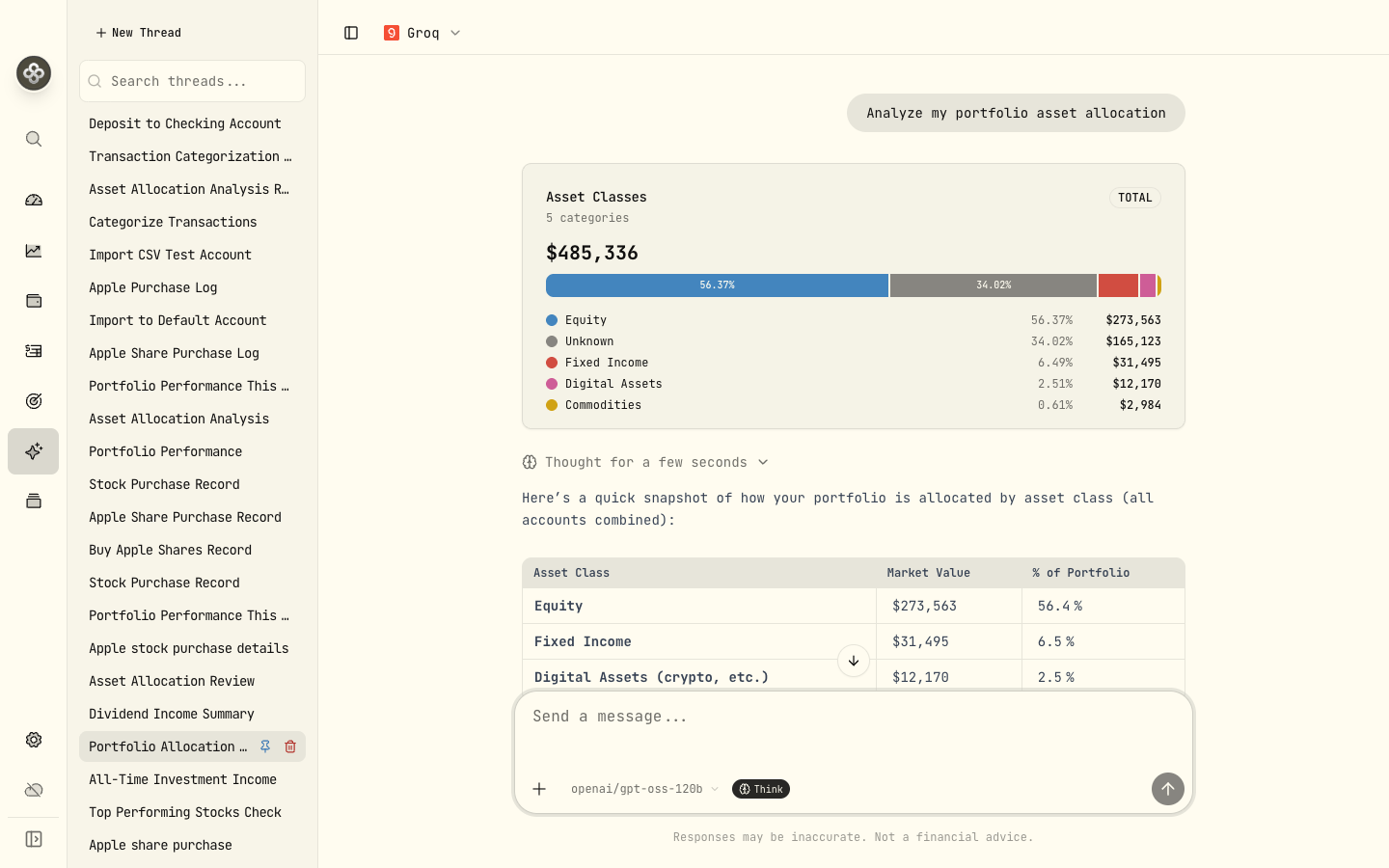
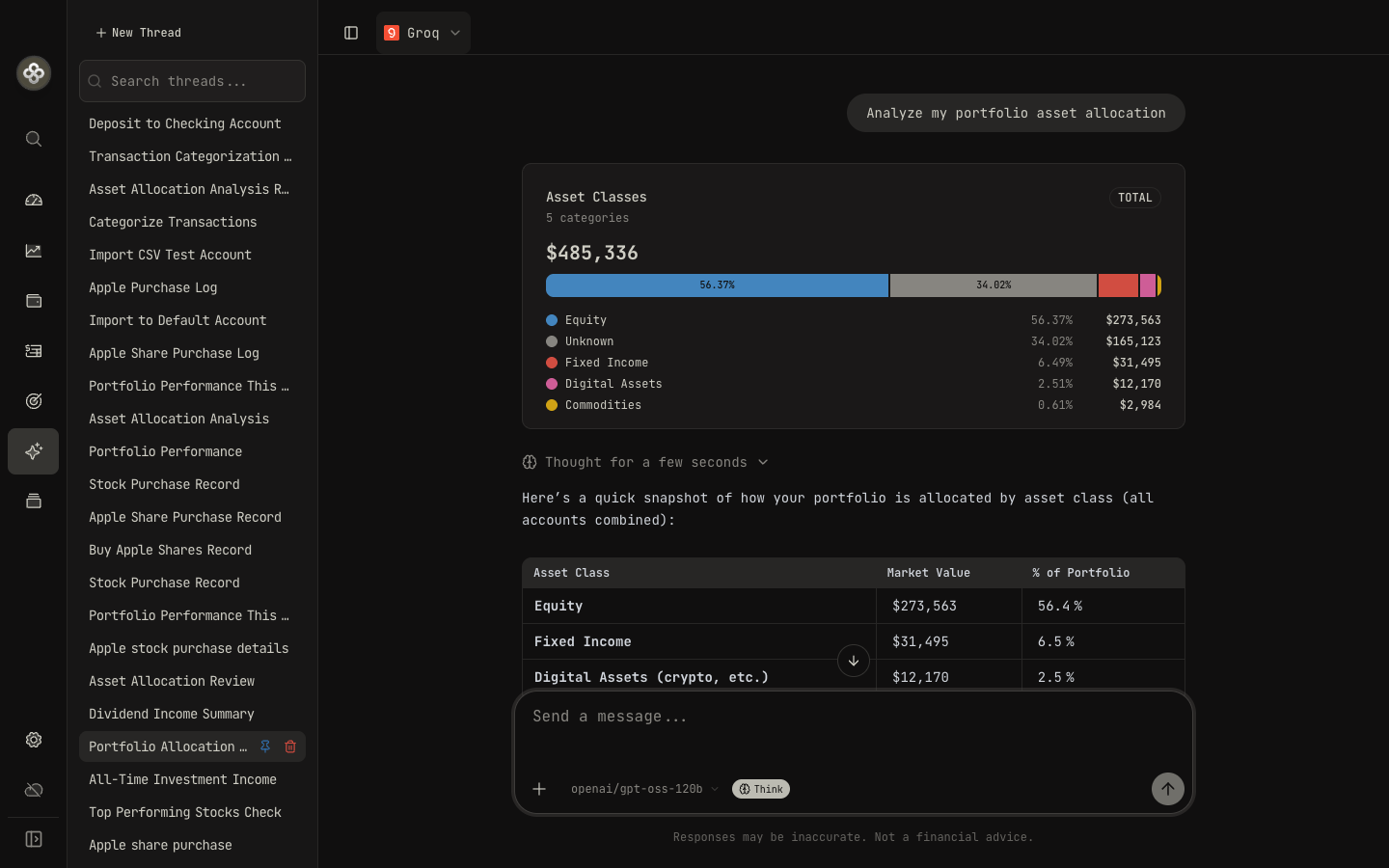
The assistant queries your portfolio and explains the results in the conversation.
The assistant can also prepare work for you to review: a transaction described in plain language, a CSV import, or an asset classification. Those changes appear as drafts in the chat. You review and confirm them before the app applies them.
Help with the spending you haven’t categorized
Spending data arrives with whatever description the bank or broker gave it. Some merchants are obvious. Others are a payment processor, a shortened name, or a string that barely resembles the place you bought something.
Rules handle the repeatable part. Once a description has a reliable match, Wealthfolio can assign its category without asking a model. The categorization workflow also uses your past choices for the same payee. AI helps with the rows those passes haven’t resolved.
You can ask the assistant to categorize uncategorized transactions for an account or date range. It uses your configured categories and examples from previously categorized transactions to propose assignments. The result is a reviewable batch: you can change a category, leave a row out, and apply the suggestions you accept. You can also ask it to prepare a reusable rule for a recurring merchant.
That review matters. An Amazon transaction could be books, household supplies, or something for work. The merchant name alone doesn’t tell the whole story. The useful outcome is a batch you can check quickly, with the ambiguous rows still open to your judgment.
Applying a category changes how the transaction appears in your spending breakdowns and budgets. It doesn’t change its recorded amount. And a saved rule gives future matching transactions a repeatable path that doesn’t need another AI call.
The Spending & Budgets guide covers rules, AI suggestions, and how assignments work.
Connect an agent you already use
The built-in chat is useful when you’re already in Wealthfolio. But you may prefer an agent you use for other work: Claude Desktop, Claude Code, Cursor, or another MCP-capable client.
Wealthfolio includes an MCP server, surfaced as AI Agent Access in settings. MCP, the Model Context Protocol, gives an external agent a way to discover and call Wealthfolio’s tools. The agent talks to the running app or self-hosted server. It doesn’t open the SQLite file itself.
That means an external agent can answer questions using the same portfolio services as the built-in assistant. Depending on the access you grant, it can also prepare drafts or commit supported changes. There is no raw SQL tool or database dump endpoint in the agent tool catalog.
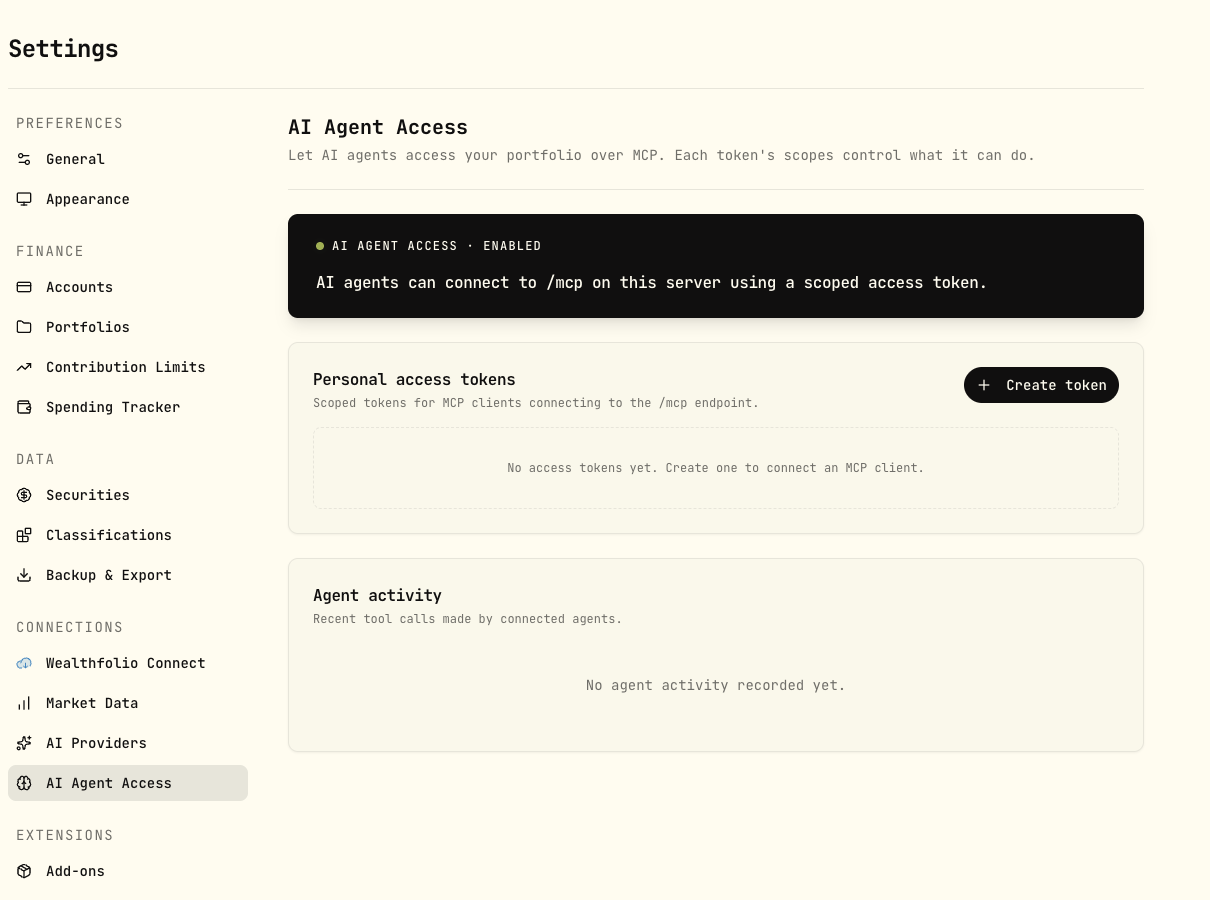
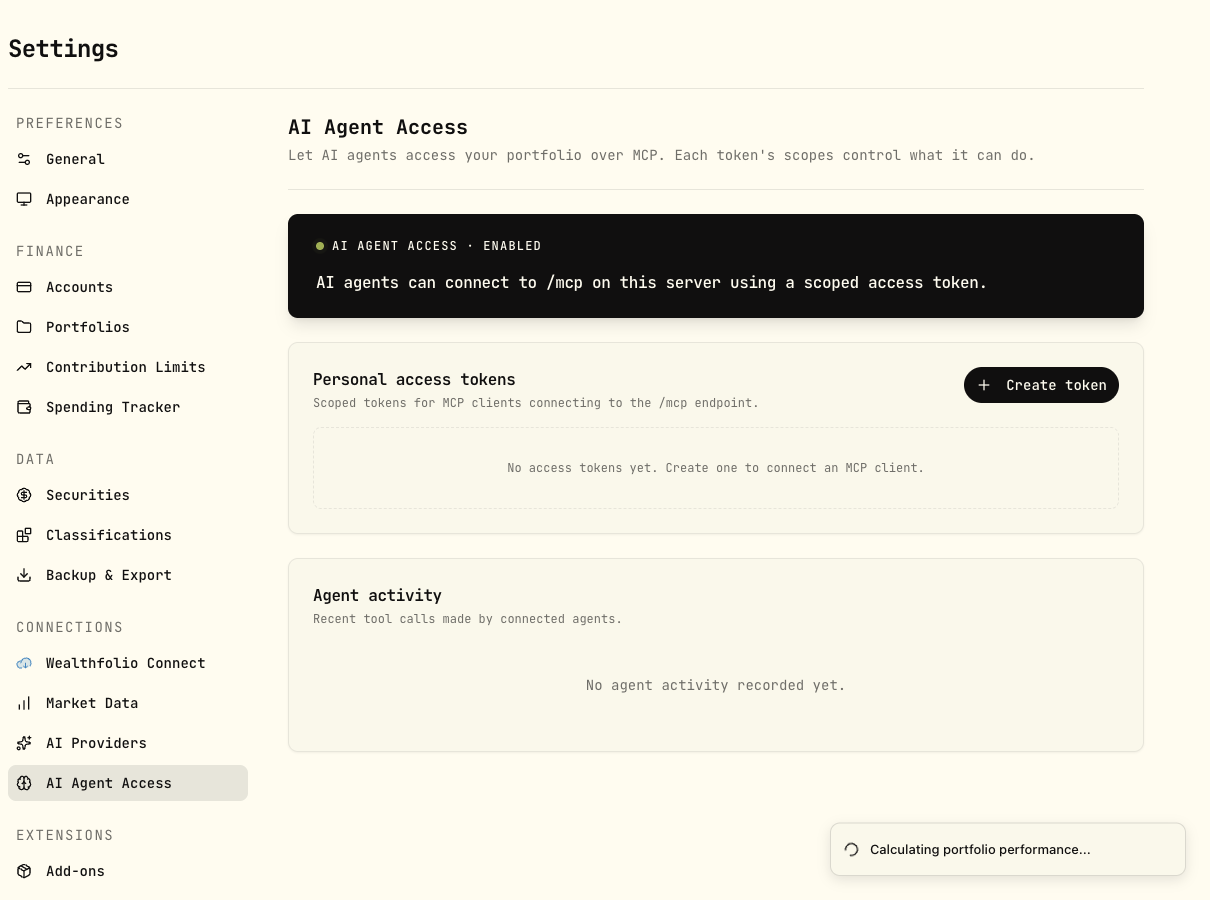
AI Agent Access controls the MCP endpoint, scoped tokens, and optional audit logging.
The server is off by default. On desktop it listens on the local loopback interface, so another machine on your network cannot connect to it. On a self-hosted installation it uses the server’s endpoint and authentication requirements. Agent Access is available on desktop and self-hosted web, with no mobile-local MCP server.
Each client needs an access token. You choose what that token can read and whether it can draft or write. Read-only is the default; tokens can expire, and you can revoke one when you no longer want a client to have access. The activity log is available when audit logging is enabled.
The distinction from the built-in chat is important: MCP write access does not use Wealthfolio’s in-app confirmation widgets. An agent with the required draft and write permissions can commit supported changes through its tools. Review in that workflow depends on the external client and the instructions you give it. Read-only or draft-only access keeps committing activities outside that client’s permissions.
The MCP Server guide walks through enabling access, creating a scoped token, and connecting a client.
What leaves your machine
Local portfolio storage and local AI processing are separate choices.
When the assistant connects to a model running on the same device, the conversation and tool results are processed locally. Ollama is one way to run that model; compatible local servers offer other choices. If you configure a server on another machine or a cloud provider, the prompt and the tool results used in that conversation go to that server. A spending categorization request can include transaction descriptions and examples of earlier category assignments.
The agent tools don’t send a copy of your database, but the results can still contain financial information: balances, holdings, transaction details, or income. A structured response is still your data. The provider you choose determines where that information is processed.
MCP adds another choice. A local endpoint doesn’t make the external agent’s model local. A client can take the results it reads from Wealthfolio and send them to its own cloud provider. Your MCP token controls which tools the client can call; it doesn’t control what happens to a result after the client receives it.
That is why the model setup and agent permissions belong in the product, where you can see and change them.
Choose how you use it
Configure the built-in assistant under Settings → AI Providers. Wealthfolio has a dedicated Ollama provider and supports several cloud providers. You can also connect a local server through an OpenAI-compatible custom endpoint. Jan, LM Studio, and Unsloth expose APIs in that format.
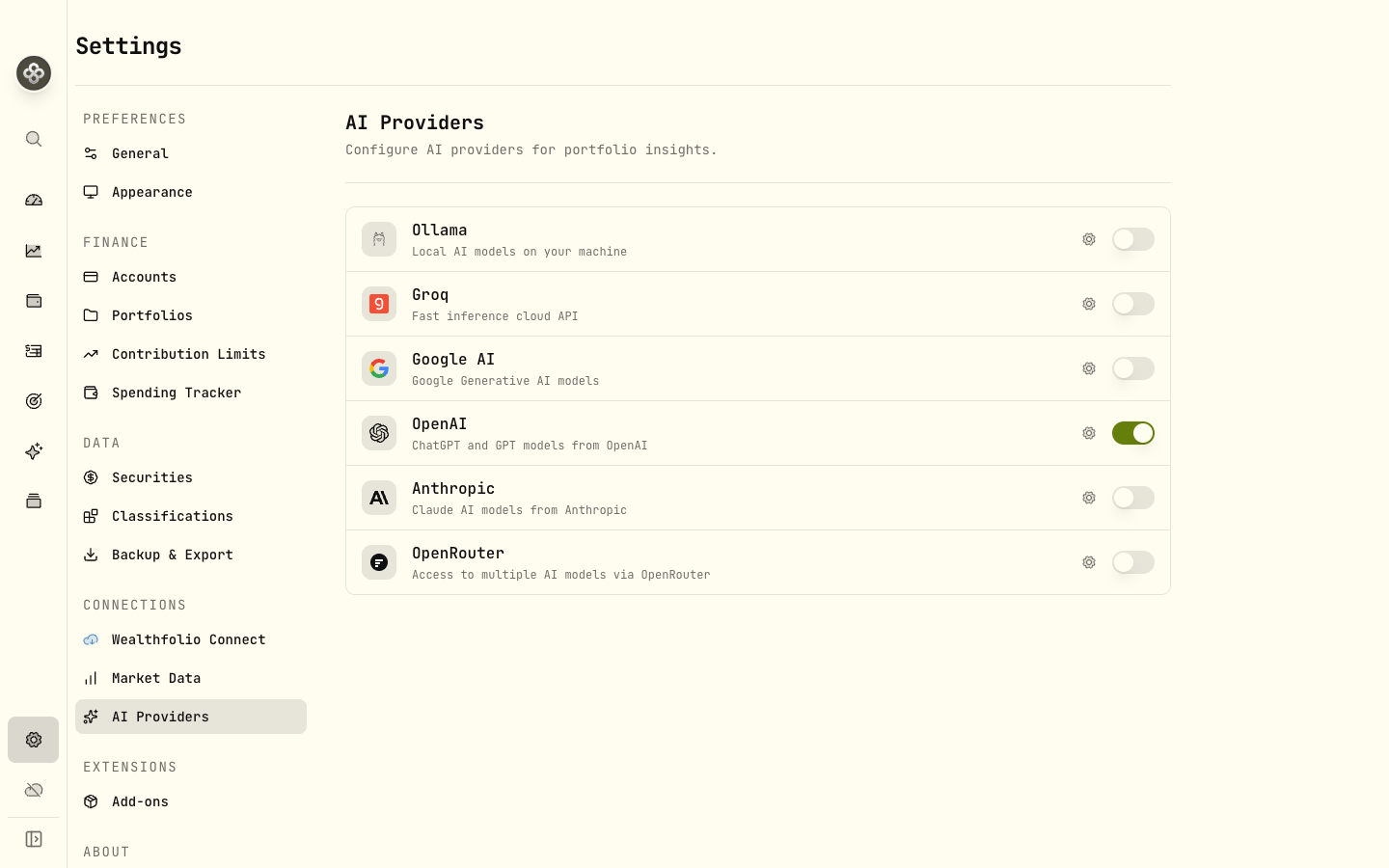
Settings → AI Providers. Open a provider’s settings to choose models and configure a compatible custom endpoint.
For those servers, choose OpenAI in Wealthfolio, set the custom endpoint to your local server’s address, and select the model it serves. The OpenAI provider option selects the API format; your endpoint determines where the request goes. The server needs to support streaming chat completions, and the model needs tool calling to query your portfolio. A model that can chat isn’t necessarily able to use the assistant’s tools.
The AI Assistant guide covers provider setup and model options.
For spending, start with categorization rules and use the assistant for the transactions that need interpretation. For an external client, open Settings → AI Agent Access and grant the capabilities that workflow needs.
The aim is to make the work around tracking money easier: finding an answer, sorting an import, or clearing a backlog of uncategorized transactions. Wealthfolio still works without AI. The tools add another way to use it, with the calculations, review steps, and access permissions kept visible.